Help

How Motorledger works.

Short answers for every part of the app. Search, or jump to a section.

01

Getting started

#

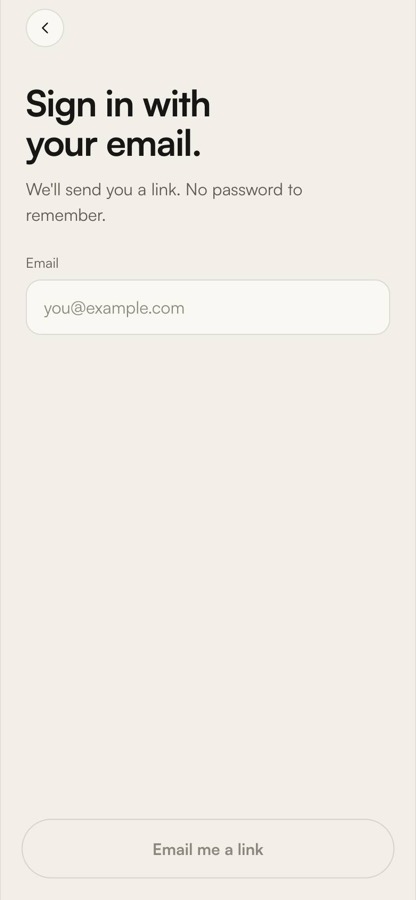
Sign in #

  1. Open motorledger.co/app, or the iPhone app.
  2. Enter your email. We send a sign-in link. No password.
  3. Tap the link on the same device. It works once, for an hour.

The same email signs you in on the web and on the phone. Your records stay in sync.

Sign in with your email

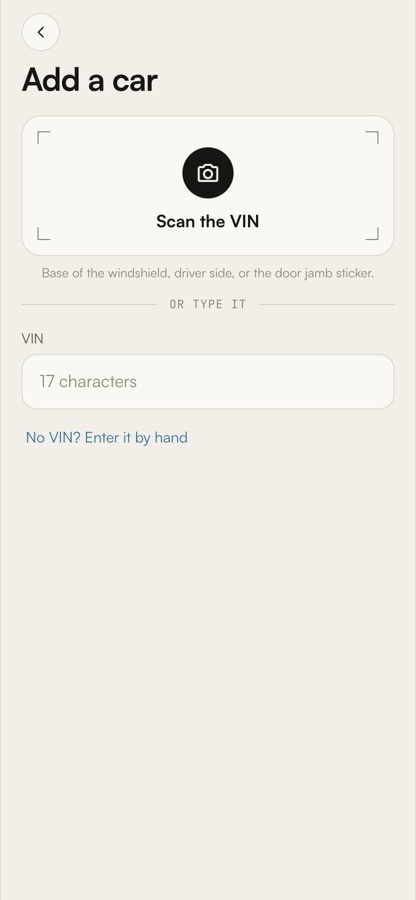
Add a car #

  1. Tap +, then Add a car.
  2. Scan the VIN on the plate at the base of the windshield, driver side, or the sticker in the door jamb. Or type it.
  3. The year, make, model and engine fill in, stamped Decoded. Pick the trim and add the odometer.

No VIN, or a car older than 1981? Choose No VIN? Enter it by hand and type the year, make, model and trim.

Add a car, with Scan the VIN

The schedule #

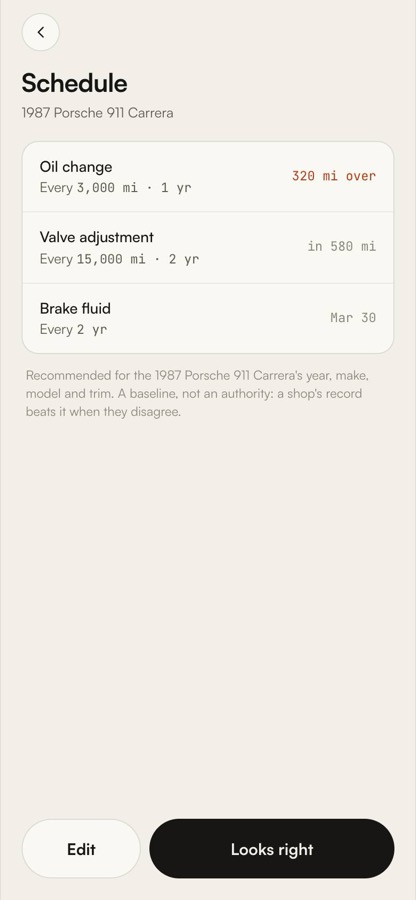
Each car gets the recommended schedule for its year, make, model and trim: every service with its miles and months, and when it's next due.

  1. Open a car, then Schedule.
  2. Tap a line to change its interval.
  3. Looks right keeps it.

Every record you save resets the clock for the services it covers.

A car's recommended schedule
02

Scanning

#

Scan a receipt #

  1. Tap +, then Scan a receipt.
  2. Hold the receipt flat inside the frame and take the photo.
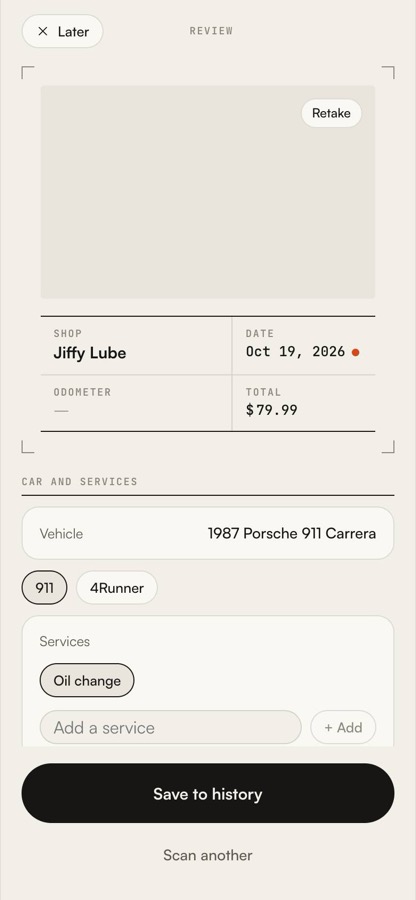
  3. Review shows the shop, date, odometer, total and each service. Fields with an ember dot were hard to read. Check them, then Save to history.

The photo stays attached to the record.

Review after a scan

Upload a photo or PDF #

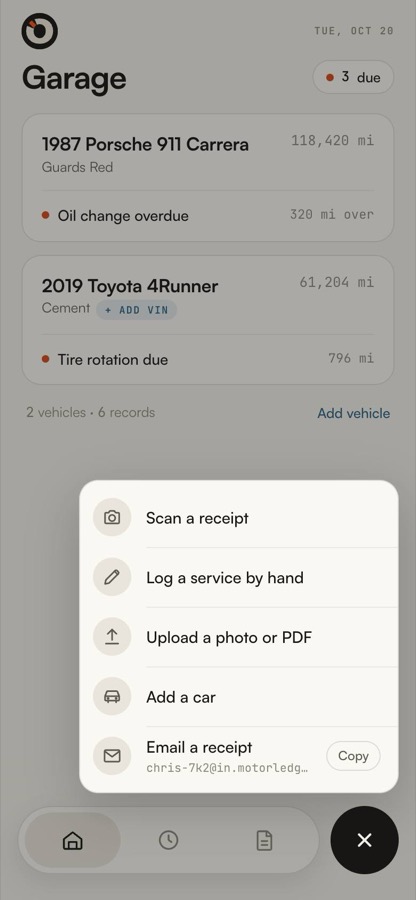
  1. Tap +, then Upload a photo or PDF.
  2. Pick the file. It's read the same way as a scan.

Good for invoices a shop emailed you, or photos already on your phone.

The add menu

Scan a VIN #

When you add a car, Scan the VIN opens a wide frame for the windshield plate or the door-jamb sticker. The VIN is checked against its check digit; if it doesn't add up you'll see Read · check it.

A car added without a VIN shows + Add VIN on its card. Tap it any time.

Scan the VIN

Read an oil-change sticker #

Scan the windshield sticker like a receipt. The date and mileage on a sticker are usually when the next service is due, not when it was done, so Review says so and asks you to check both before saving.

Review with fields to check

Import a binder Pro #

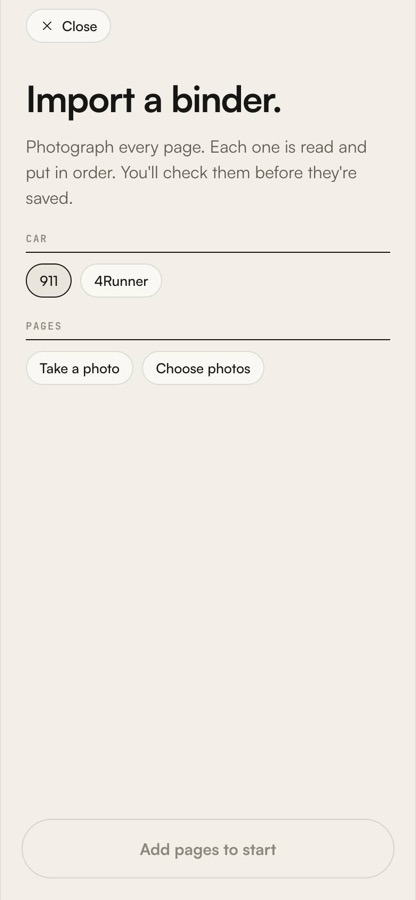
  1. Tap +, then Scan a receipt, then Multi.
  2. Photograph each page of the binder: handwritten logs, dealer stamps, old invoices.
  3. Motorledger reads them all, puts the history in date order, and marks each record Imported.
Binder import

Needs review #

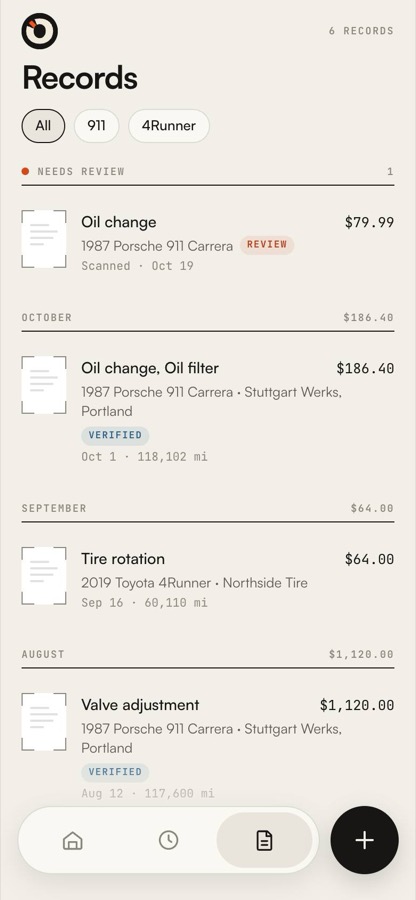
Anything the reader wasn't sure of, or couldn't match to a car, waits at the top of Records under Needs review. Tap one to finish it. A receipt that couldn't be read shows Retake.

Records with Needs review
03

Logging by hand

#

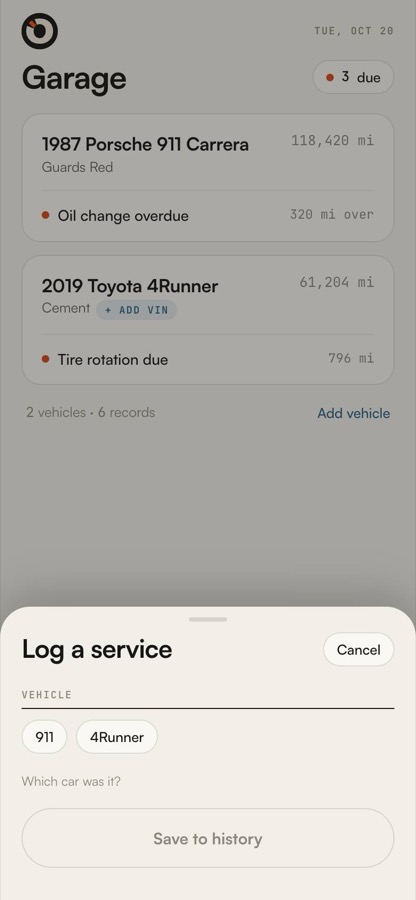
Log a service #

  1. Tap +, then Log a service by hand. Or Log a service on a car's page.
  2. Pick the car and the services. Add the date, odometer and cost if you have them.
  3. Save to history.

Work you did yourself is stamped In house. Manual records are free and unlimited.

Log a service sheet
04

Email-in

#

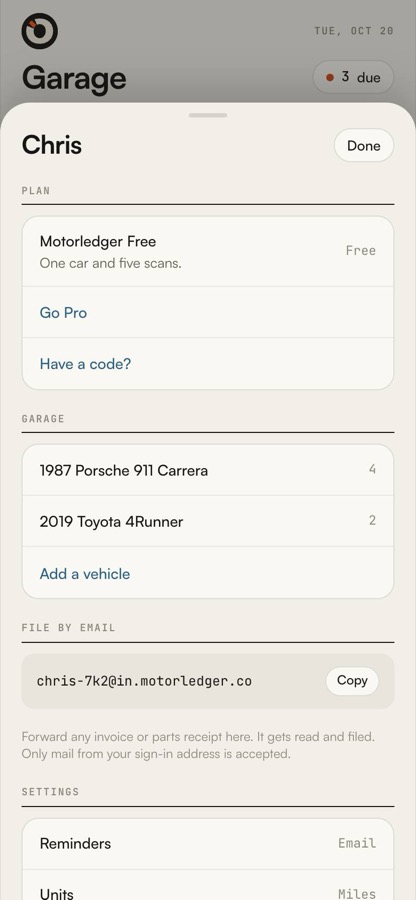
Your filing address #

  1. Tap the gauge icon, top left, to open Account.
  2. Under File by email is your address, like name-7k2@in.motorledger.co. Tap Copy.
  3. Forward a shop's emailed invoice there.
From
Only the address you sign in with. Mail from anywhere else is ignored.
Accepts
PDF and photo attachments (JPG, PNG, WebP, GIF), up to five per email. With no attachment, the email's own text is read.
Counts as
One scan per receipt. Free accounts can email in against their five scans; Pro is unlimited.
Then
It's filed under the right car, or waits in Needs review if the car isn't clear.
Account sheet with the filing address
05

Due and reminders

#

What's due #

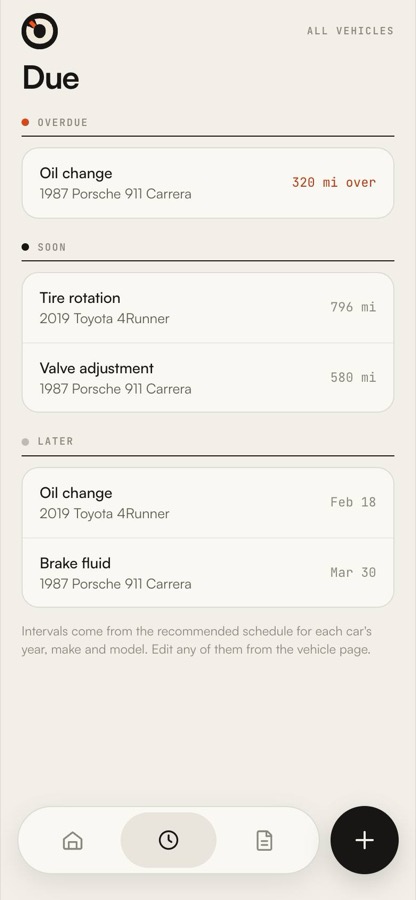
The Due tab lists every car's services as Overdue, Soon and Later, by miles or by date, whichever comes first. Soon means within 30 days, or close to the mileage.

You get one reminder when a service becomes due and one if it goes overdue. No streaks, no daily nudges. On iPhone it's a notification; otherwise an email. Change it in Account, Reminders.

The Due tab
06

Records and the dossier

#

A record #

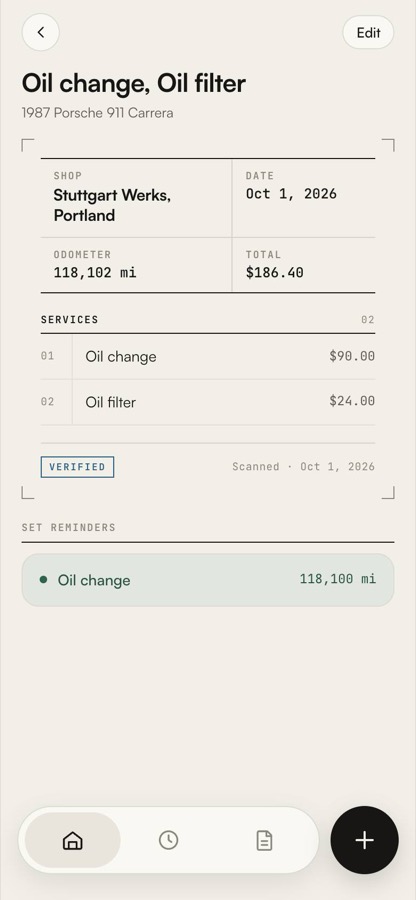
Tap any record to open it: the receipt photo, the shop, date, odometer and total, each service, and its stamp. Edit changes anything.

Verified
Read from a shop's own invoice.
Imported
From a handwritten log or a previous owner's binder.
In house
Logged by hand.
A service record

Share the dossier Pro #

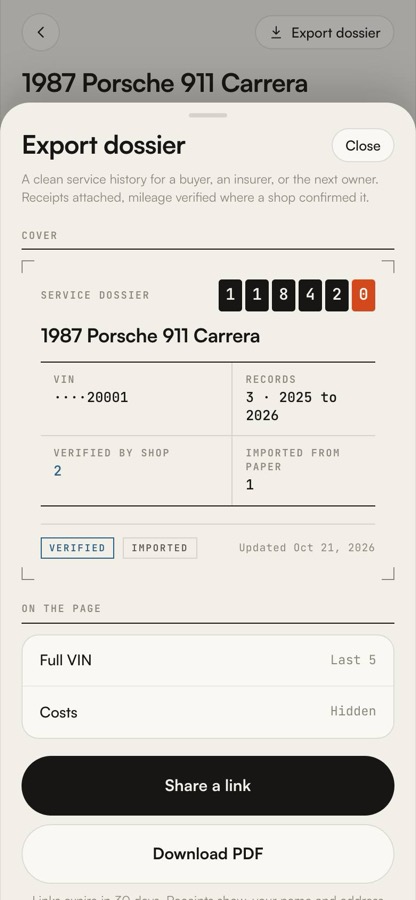
  1. Open a car, then Export dossier.
  2. Choose whether to show the full VIN and what you paid.
  3. Share a link for a private page, or Download PDF.
The link
Private, for anyone you send it to, for 30 days. Changing a setting makes a new link.
Covered
Names, addresses and card numbers on any receipt shown.
By default
The VIN shows its last five characters. Costs are hidden.
Export dossier sheet
07

Pro

#

Plans and prices #

Free
One car, five scans, manual records and reminders without limit.
Pro
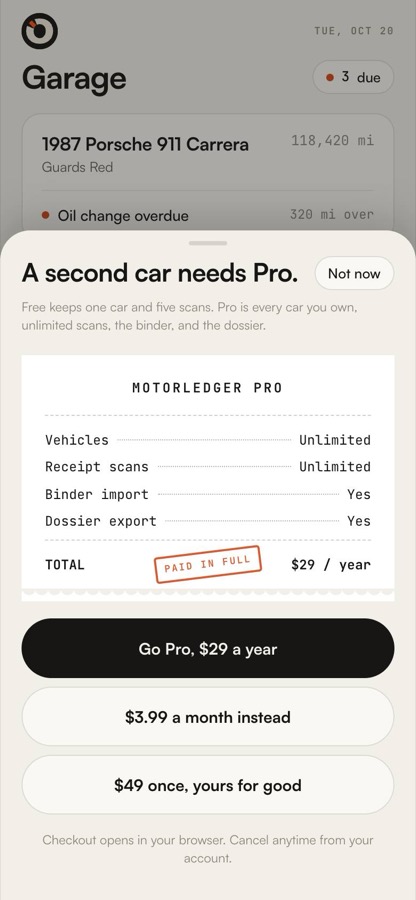
Unlimited cars and scans, binder import, the dossier. $29 a year, $3.99 a month, or $49 once.
Lifetime
The $49 plan is paid once. Nothing renews.
  1. Account, then Go Pro. Checkout opens in your browser.
  2. To cancel, change your card or see invoices: Account, then Manage subscription. Cancelling keeps Pro until the end of the period.
Lifetime
Refundable within 14 days of purchase.
Yearly, monthly
Refundable within 14 days of the first charge.
After that
Cancel any time and keep Pro until the end of the period you paid for.

To ask for a refund, write to hello@motorledger.co from the address on your account. The terms have the details.

The Pro paywall
08

Your data

#

Export and delete #

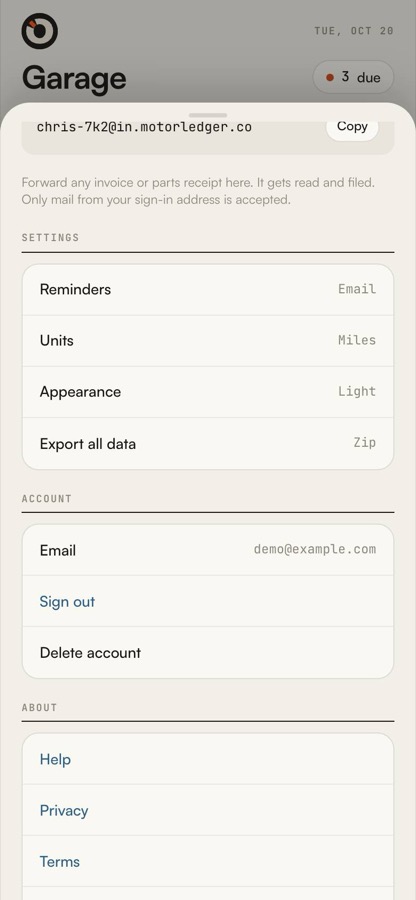
  1. Account, then Export all data, then Download everything: a zip with every record as a spreadsheet and every receipt photo, on any plan. A big garage comes one car at a time. Records only gives just the CSV.
  2. Account, then Delete account removes your records, photos, cars and login. It can't be undone.
Never
Your records are never sold, and nothing is shared with insurers or data brokers. Not named, not anonymized, not in bulk.

The privacy policy lists every service that handles your data and why.

Account settings with Export all data and Delete account
09

Founders codes

#

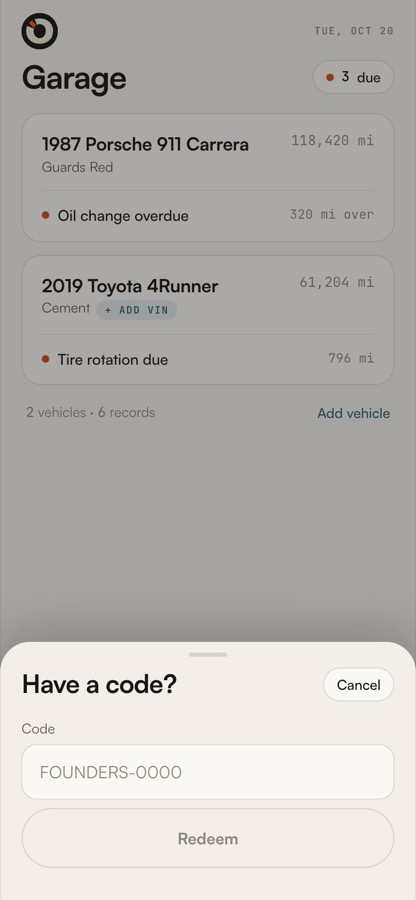
Redeem a code #

  1. From an invite link like motorledger.co/join/CODE: sign up as usual. The code is applied once your garage opens.
  2. Or open Account and tap Have a code?, then enter it.

A code gives Pro on the house, shown as Pro · Founders. One code per account, and not on top of a paid plan.

Have a code? sheet
10

Troubleshooting

#
A scan is slow
Reading usually takes a few seconds; a long invoice or a weak signal takes longer. Keep the app open until Review appears. If reading is paused, the receipt waits in Records under Needs review to retake or fill in.
It filed under the wrong car
On Review, tap the right car's chip before saving. For a saved record, open it, tap Edit, and pick the car.
A field was read wrong
Tap the field and fix it. Fields with an ember dot were the ones the reader wasn't sure of. The photo stays attached either way.
The VIN wasn't found
Check the 17 characters: there's no I, O or Q in a VIN. Cars before 1981 don't have a standard VIN; use No VIN? Enter it by hand.
11

FAQ

#
What if it reads something wrong?
Anything Motorledger isn't sure about gets an ember dot and a one-line note before you save. Tap the field, fix it, done. The original photo stays attached to the record either way.
Where do the service intervals come from?
From the recommended schedule for your car's year, make, model and trim. They're a baseline, labeled as such, and every interval is editable. When a shop-verified record disagrees with the baseline, the record wins.
Can I get my data out?
Always. Account, Export all data gives a zip of every record and every receipt photo, and the dossier gives a page or a PDF per car. No plan required to export.
Does it work for my old car?
Especially. Air-cooled, carbureted, pre-OBD, whatever. Motorledger reads paper, not the car's computer, so the age of the car doesn't matter.
Is there an Android version?
iPhone first. On Android the web app installs like an app: open motorledger.co in Chrome and add it to your home screen. It opens full screen and stays in sync.
Do I need the iPhone app?
No. The web app works on any phone, tablet or computer, with the same account and the same records.
What counts as a scan?
Each receipt read from a photo, a PDF, a binder page or an email. Typing a record by hand doesn't count. Free includes five.
Can I keep more than one car?
Free keeps one car. Pro keeps as many as you like, each with its own schedule and history.
Do you read my email?
Only mail you send to your filing address, from the address you sign in with. Nothing else in your inbox is touched.
Who can see my dossier?
Only people you send the link to, for 30 days. It doesn't show up in search. Names, addresses and card numbers on receipts are covered.
Can I change the schedule?
Yes. Open a car, then Schedule, and tap any line. Your changes are kept and marked as yours.
What does Verified mean?
The record was read from a shop's own invoice. Imported means it came from a handwritten log or a previous owner's binder. In house means you logged it by hand.
How do I cancel Pro, or get a refund?
Cancel from Account, then Manage subscription; you keep Pro until the end of the period you paid for. Refunds: lifetime within 14 days of purchase, yearly and monthly within 14 days of the first charge. Write to hello@motorledger.co from the address on your account.
Do reminders need the app open?
No. On iPhone they arrive as a notification; otherwise by email. One when a service is due, one if it goes overdue.
What happens when I sell the car?
Export the dossier and give the buyer the link or the PDF. It carries the full history, with the receipts and what a shop confirmed.
Nothing matches that. Try another word, or write to hello@motorledger.co.

Still stuck? Write to us. A person answers.

hello@motorledger.co